Meet the new AI detection engine powering all v5 software
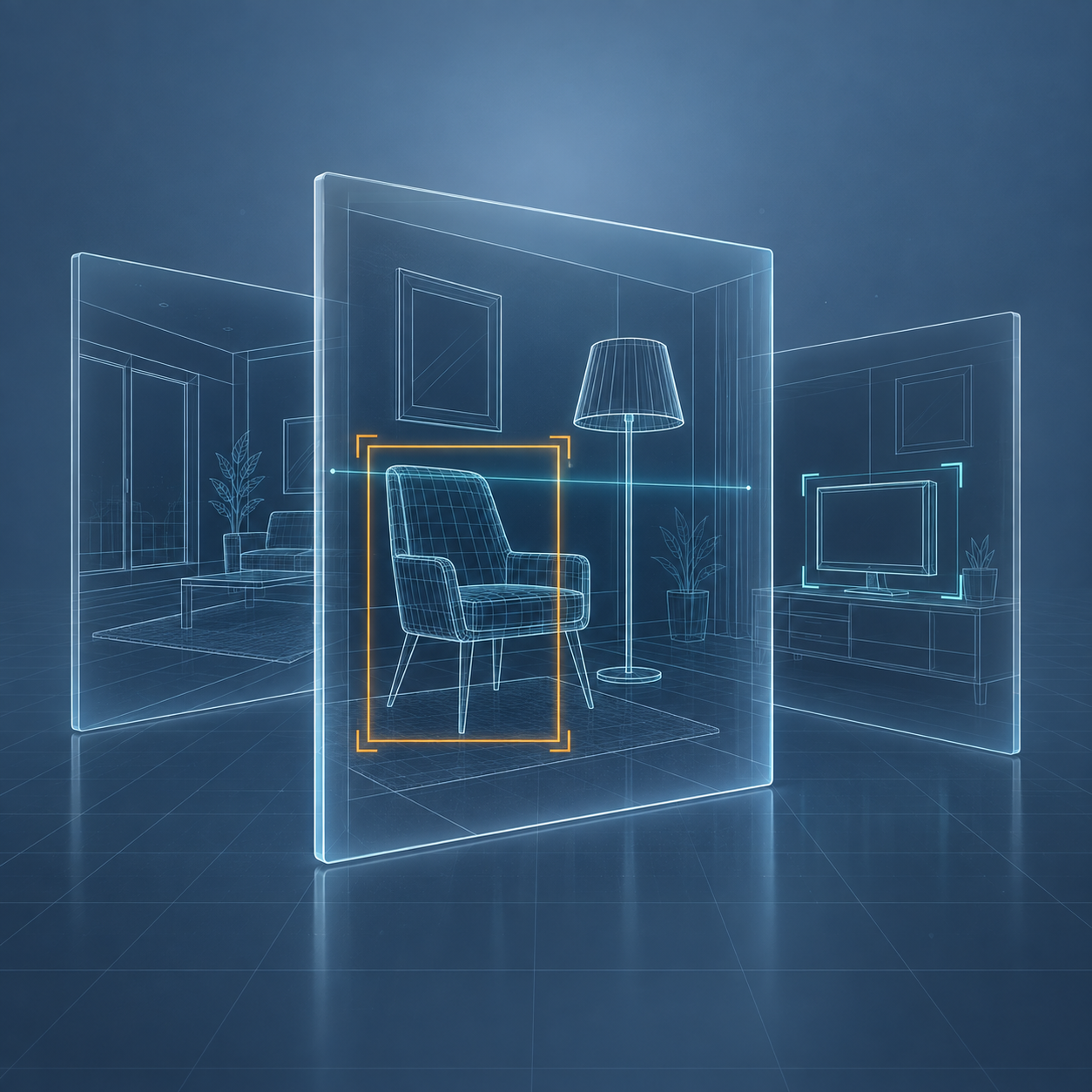
An AI engine that looks at what is actually in each image and video frame, not at file names or skin-tone maths.
It finds people and what they are doing, then scores how explicit the scene is. A crisp beach photo and a genuinely explicit image no longer land next to each other. Everything runs on your PC; nothing is uploaded.
Ranks by
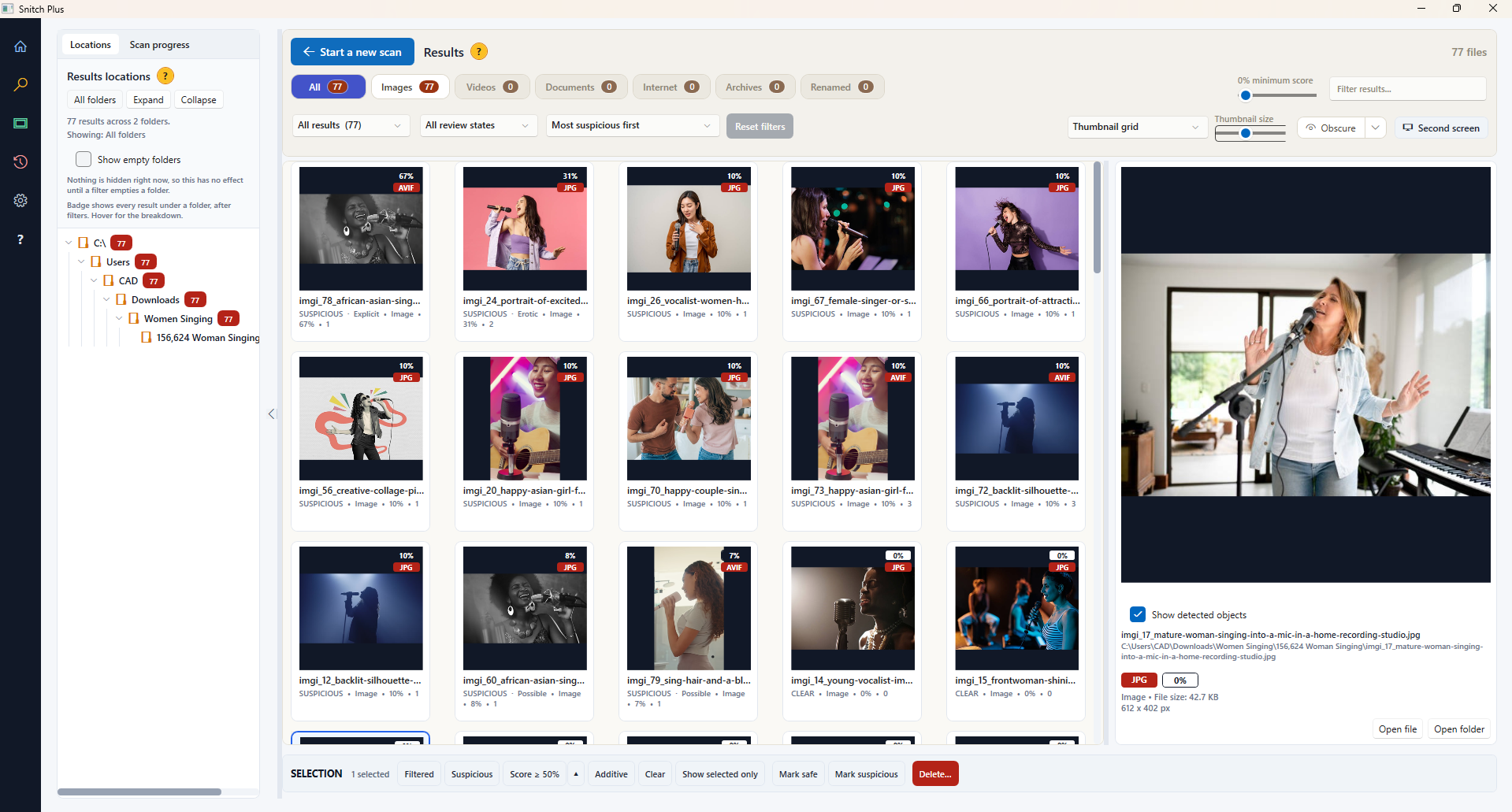
How explicit a scene is, in three bands: Explicit, Erotic, Possible. Further weighting is applied based on detected objects in the scene.
Looks at
Images, every sampled frame of a video, and animated pictures.
Runs on
Your graphics card where supported, your processor otherwise. Nothing is uploaded.
Every suspicious result lands in one of three bands: Explicit, Erotic or Possible.
The list is sorted by how serious a result is, not by how sure the detector was. The worst is at the top where you need it, and honest maybes sit at the bottom in Possible instead of being hidden or promoted. A filter of "Explicit only" means exactly that.
Where Results → the score on every thumbnail, the Explicit / Erotic / Possible filters and the default sort.
Video, frame by frame
Every edition
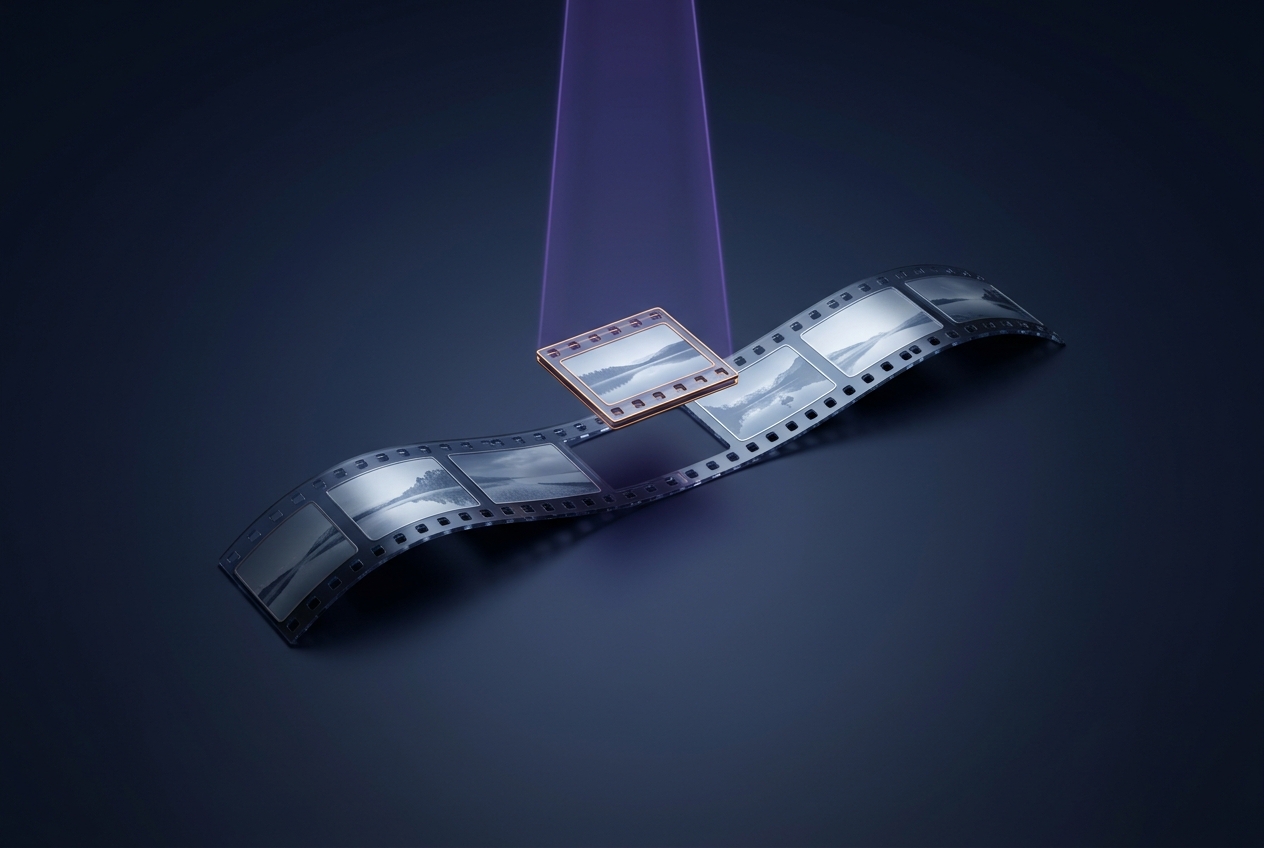
Videos are sampled across their whole length and judged on their worst frame.
A file is not cleared because its first second is innocent. Animated GIF and WebP files are treated the same way, because a moving image is still a series of pictures.
Where Results → Videos. Reported as images when the file is an animated picture.
Graphics-card acceleration
Every edition
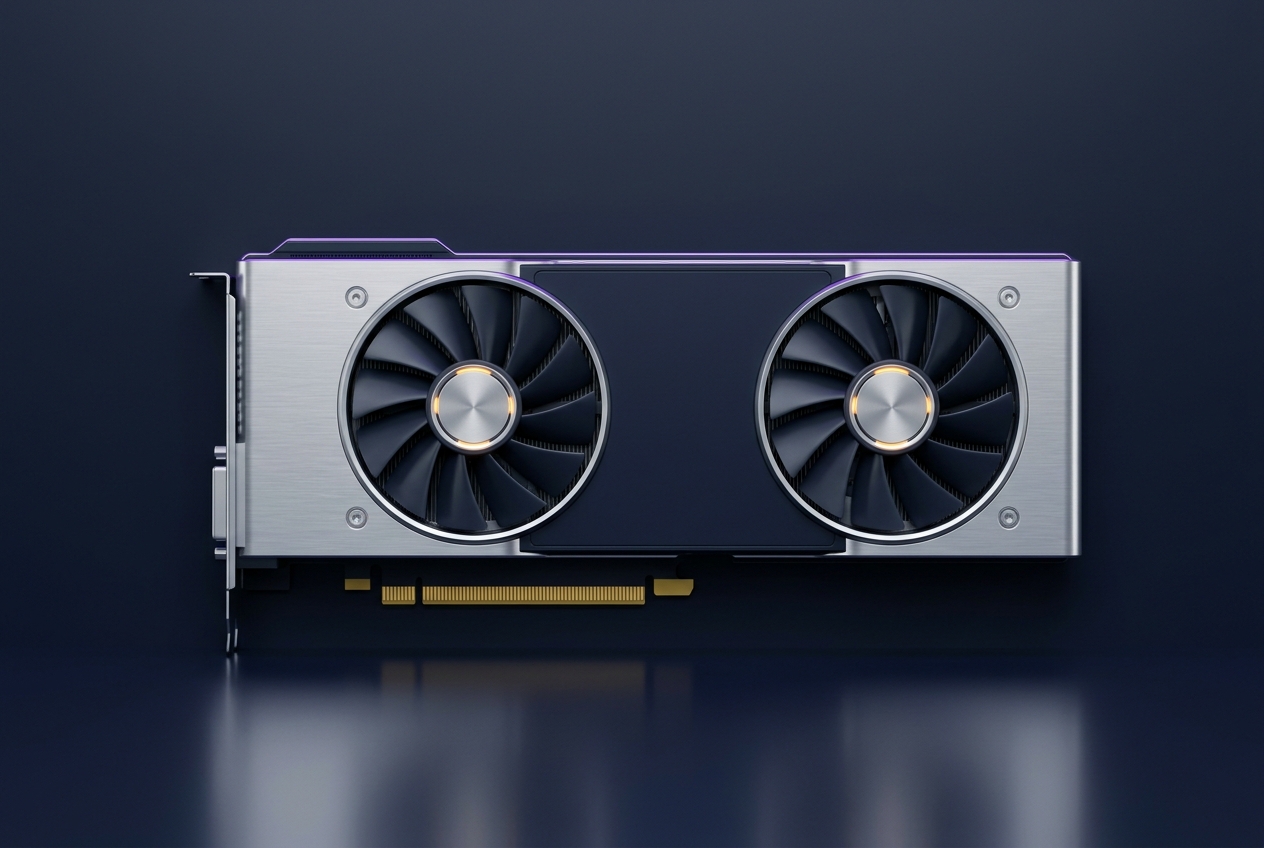
The engine runs on a supported graphics card when there is one, and on the processor when there is not.
A gaming PC finishes a full drive in minutes. An older laptop gets the same results, more slowly. If a graphics card fails part-way through a scan, Snitch carries on using the processor rather than stopping.
Where Settings → Performance. Results shows a notice if the card was lost mid-scan.
02
Scan
Choosing what to look at, and every place the scan can reach.
A quick first pass that lists the files on your drives before any analysis starts.
You see how many files are in scope, their total size and an estimated time before you press Start, and the numbers update live as you tick folders or change filters. The estimate is what the progress bar fills against.
Where What to scan → the estimate readout on the right, on every setup screen.
Choose exactly what to scan
Every edition
A folder tree with tick boxes, plus filters for file type, size, pixel dimensions and dates.
Tick a whole drive, a few folders, or everything except one. Save the selection as a folder set to reuse later, and pick a profile such as Quick or Normal. Every change shows how many files it adds or removes.
Where What to scan → the Folders and File types rows, above the tree.
Browser history
Every edition
A read of what has been visited and searched in the browsers on the PC, for every Windows user account.
Matched words are shown with the page title and the sentence around them, so you can judge each one. Snitch reads Chrome and Edge. Snitch Plus adds Firefox, Brave, Opera, Opera GX, Vivaldi and Chromium.
Where What to scan → the Browsers chip on the File types row. Results → Internet.
Keyword matching
Every edition
Built-in lists of suspicious words, checked against file names in every edition and against document contents in Plus.
A file called the wrong thing is caught by its name alone. Snitch Plus lets you add your own words in a Custom set, arranged in categories you choose, without touching the built-in lists.
Where Settings → Keywords (Plus). Results → the matched words on each result.
Reads inside documents
Snitch Plus
Text, log, CSV, XML, RTF, HTML and PDF files are opened and their words checked.
A saved web page or a text note is found by what it says, not just what it is called. Word, Excel and PowerPoint reading is part of PinPoint Auditor.
Where What to scan → the Documents chip. Results → Documents, as an evidence list.
Looks inside archives
Snitch Plus
ZIP, RAR, 7z, TAR, GZ, XZ, BZ2, CAB and ISO archives are opened and the files inside scanned, including archives inside archives.
A zip is a place to look, not a wall. Results show the archive as a band with the files found inside it, so you can act on the whole archive or see what is in it.
Where What to scan → the Archives chip. Results → In archives.
Finds disguised media
Snitch Plus
Files are identified by reading their contents, not their extension.
A video renamed to look like a PDF or a spreadsheet is still a video, and Plus scans it as one. Results carry a Renamed badge so you can see what was hiding.
Where Results → Renamed.
Home network storage
Snitch Plus
Shared folders, NAS units and mapped drives that this PC can already open.
Tick them in the tree like any other folder. This is for home networks only: business networks, servers and domain-joined PCs are PinPoint Auditor's job, and the technology demo will not run on a domain-connected system.
Where What to scan → Add folder…, or a mapped drive letter in the tree.
03
Review
Seeing the results, understanding why each one is there, and deciding.
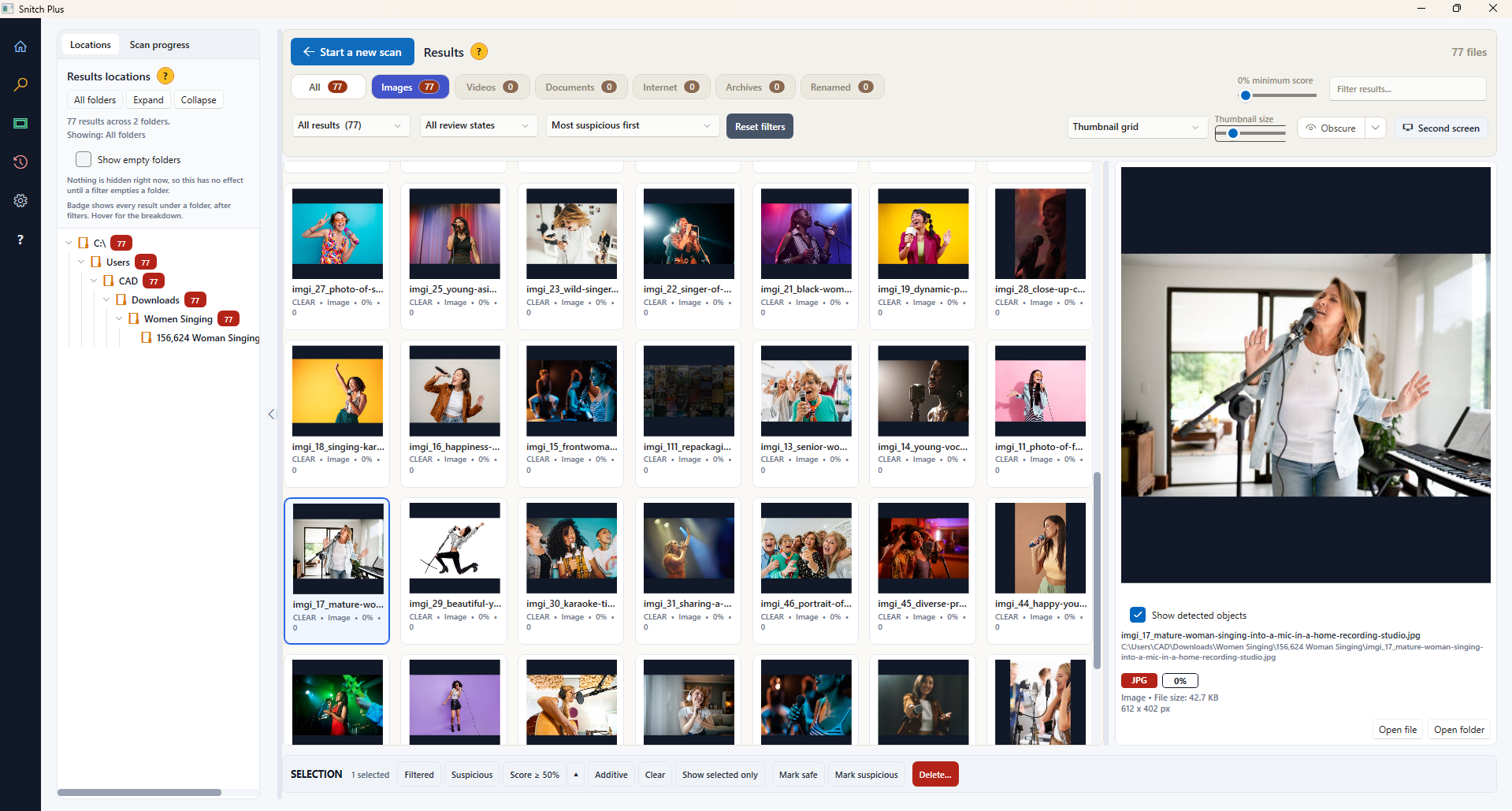
Thumbnails, a compact grid or a table, with a preview and the reasons each file was flagged.
Every result explains itself: its band and score, matched words in context, a renamed-file warning. Filter by folder, category or band, select everything suspicious in one click, mark files safe or confirm them. Nothing is removed from here by accident.
Where Results. The view you choose is remembered per category.
Obscure with one click
Every edition
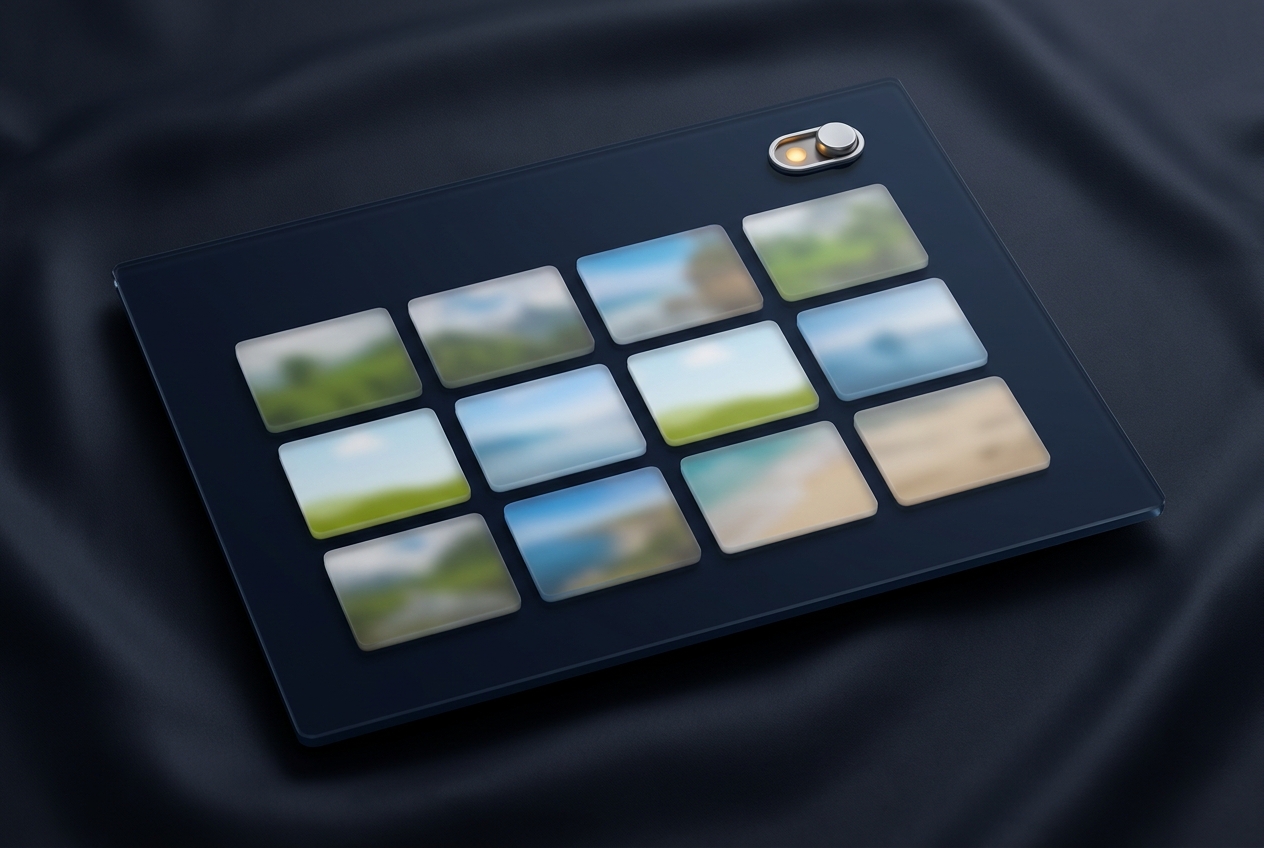
A switch that blurs every thumbnail and preview on screen.
Given the subject matter, you can review scores, names and reasons without looking at the pictures, and turn it off only when you need to. It hides the same fraction of the image at every size.
Where Results → the Obscure switch in the toolbar.
04
Clean up
Removing what you have decided on, and the small tools that keep the job tidy.
One cleanup action per edition. Snitch deletes. Snitch Plus overwrites the file first, then deletes it.
Every removal shows the exact count and lists every file before you confirm. Snitch's Delete removes a file from view, but undelete tools can still recover it. Plus's Delete & Scrub overwrites it first, so it cannot be brought back with ordinary tools.
Where Results → select files → Delete.
Interrupted-scan recovery
Snitch Plus
A checkpoint written as the scan runs, so a stopped scan can resume.
If the PC restarts or a drive is unplugged part-way through a long scan, Plus offers to pick up where it stopped instead of starting the whole thing again. Stopping a scan yourself keeps the partial results too.
Where Offered when Snitch Plus next opens after an interrupted scan.
The small things that keep it tidy
Every edition
A safe list, a startup password, saved results and automatic updates.
Mark a file safe once and it stays out of future results. Put a password on the program so nobody else opens your results. Save a result set and reopen it later. Updates within version 5 install themselves.
Where Settings, and Results → Save.
SEE IT WORK
Drag and drop your own images onto the online test tool. Try it for yourself, before downloading.
Watch the detection engine categorize your image, drag an image from another website or upload test files from your own system.